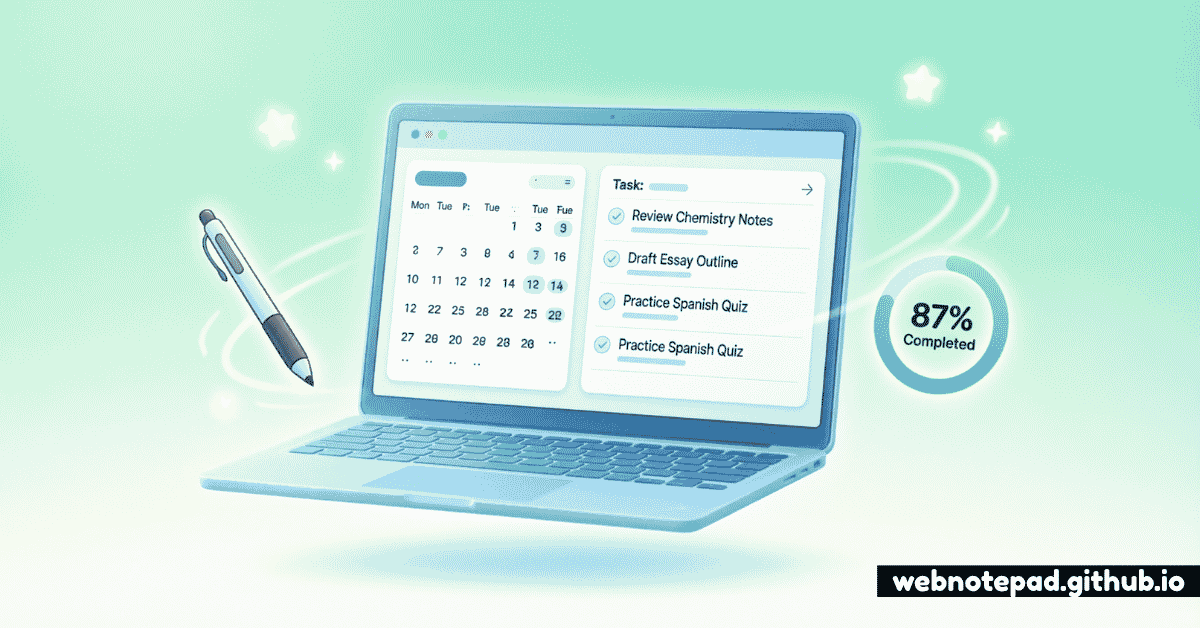
Every student starts the semester with a beautiful plan. A color-coded spreadsheet, a shiny new planner, a promise to "stay on top of it this time." By week four, most of that system has quietly collapsed — not because the student lacked discipline, but because the system had too much friction to survive contact with a real, busy week.
A digital study planner fixes the friction problem. It lives in a browser tab that's already open, saves itself automatically, and can be rebuilt in seconds when your schedule inevitably changes. This guide walks through exactly how to build one — using free tools from the WebNotePad toolkit — so your plan survives past week four.
Why a Digital Study Planner Beats Paper
Paper planners aren't bad — they're just fragile. One missed week and the whole layout feels outdated. A digital study planner solves the same problems a digital note-taking system solves for general productivity, applied specifically to academic work:
It's Always With You
Your planner is open in a browser tab on whichever device you're using — laptop in the library, phone between classes. No physical planner left in your bag.
It Adapts Instantly
Reschedule an assignment, add a pop quiz, or reshuffle your revision order in seconds — no crossing out, no rewriting a whole week's grid.
It Tracks Consistency, Not Just Tasks
Beyond a to-do list, digital tools can track study streaks over time, showing you patterns a paper planner never surfaces — like which days you consistently skip.
The 5 Core Components of a Study Planner
Whether it's built from a $40 planning app or free browser tools, every study planner that actually works contains the same five components:
- A capture zone — somewhere to instantly jot down an assignment, deadline, or thought during class.
- A task list — a structured, checkable list of assignments and to-dos, ordered by priority or due date.
- A time-boxed study block — a defined period of focused work, not just an item on a list.
- A consistency tracker — a way to see whether you're actually studying regularly, not just planning to.
- A reflection log — a short, regular review of what worked and what didn't, so the system improves over time.
Below is exactly which free tool covers each component.
Building Your Digital Study Planner, Step by Step
Step 1: Capture Everything in the Notepad
Open the Notepad →
During class or while reading a syllabus, keep a note open titled "INBOX." Every assignment, deadline, or reading mentioned gets typed in immediately — raw and unorganized. Auto-save means nothing gets lost, even if you close the tab mid-lecture.
Step 2: Turn Captures Into a Task List
Open List Maker →
Once a week, empty your Notepad "INBOX" into the List Maker. Turn each raw capture into a checkable task, ordered by due date. This becomes your single source of truth for what's actually owed and when.
Step 3: Map Out Complex Topics
Open MindMap →
For a big essay, thesis, or exam unit with many interconnected topics, use MindMap to branch out from the central subject before you start writing. Seeing the full shape of a topic prevents the panic of an overwhelming, unstructured subject.
Step 4: Study in Focused, Time-Boxed Blocks
Open Pomodoro Timer →
Set a 25-minute work interval with a 5-minute break. Study in these blocks rather than vague, unbounded "study sessions" — the timer creates urgency and makes a 3-hour revision marathon feel like six manageable sprints.
Step 5: Write Essays and Assignments Distraction-Free
Open Focus Writer →
When it's time to actually write an essay or lab report, switch to Focus Writer's minimalist mode with live word count. No sidebars, no notifications — just the page and your words.
Before submitting, run the draft through the Word Counter to confirm it meets length requirements, and the Readability Analyzer to check that your writing is clear rather than needlessly dense.
Step 6: Track Study Consistency
Open Habit Tracker →
Add "Studied today" as a habit and mark it every day you complete at least one Pomodoro session. Watching a streak grow is one of the most reliable motivators for showing up on the days you don't feel like it.
Step 7: Reflect Weekly in the Diary
Open the Diary →
Every Sunday, write a short dated entry: what you finished, what slipped, and one change for next week. This is the step most planners skip — and the one that turns a static schedule into a system that actually improves.
A Simple Weekly Study Planner Template
If you want a ready-made structure, copy this layout into a new List Maker checklist at the start of each week:
- Monday–Friday: One 25-minute Pomodoro block per subject, logged in Habit Tracker
- Wednesday: Mid-week check — reprioritize the task list based on upcoming deadlines
- Saturday: Longer focused session for the week's largest assignment, written in Focus Writer
- Sunday: Weekly reflection entry in the Diary, plus planning next week's task list
This structure takes under ten minutes a day to maintain and covers capture, action, focus, and reflection — the same four-part loop behind almost every productivity system that has stood the test of time.
Exam Season: A Focused Revision System
During exam season, the same tools shift roles slightly:
- Use MindMap to break each exam subject into its core topics before building a revision schedule.
- Turn each topic into a checklist item in List Maker, checked off only once you can explain it without notes.
- Run back-to-back Pomodoro Timer sessions for active recall practice, rather than passive re-reading.
- Track daily revision streaks in Habit Tracker so gaps in coverage are visible before exam day, not during it.
A digital study planner isn't one app — it's a small set of focused tools, each handling one part of the study cycle: capture, plan, focus, track, and reflect. Free, browser-based tools cover every one of these without a subscription, an install, or a signup form standing between you and studying.
Common Study Planning Mistakes to Avoid
- Over-engineering the system. A planner with twelve categories and color codes takes longer to maintain than to actually study. Start simple.
- Skipping the weekly reflection. Without a short review, the same scheduling mistakes repeat every week.
- Studying in unbounded sessions. "I'll study until I'm done" invites burnout. Time-boxed sessions with the Pomodoro Timer are far more sustainable.
- Tracking tasks but not consistency. A completed to-do list doesn't tell you if you're building a sustainable habit — that's what the Habit Tracker is for.
Start with one component — even just a weekly checklist in List Maker — and add the rest only once that habit sticks. A study planner you actually use beats a perfect one you abandon by week four.
Build your first study checklist right now — free, no signup, and ready in seconds.
Open List Maker →Frequently Asked Questions
What is a digital study planner?
A digital study planner is a browser-based or app-based system for organizing assignments, revision sessions, exam dates and study habits, replacing a paper planner with searchable, editable, auto-saving tools.
Do I need to pay for a digital study planner?
No. Free browser-based tools like WebNotePad's List Maker, Habit Tracker and Pomodoro Timer cover the core functions of a study planner without any subscription or signup.
What should a weekly study planner include?
A weekly study planner should include a task checklist for assignments, dedicated time blocks for revision, a habit tracker for consistency, and a short reflection log to review what worked.
How does the Pomodoro Technique help with studying?
The Pomodoro Technique breaks study time into focused intervals, typically 25 minutes, separated by short breaks. This structure reduces burnout, improves concentration, and makes large study sessions feel manageable.
Is my study planner data private?
WebNotePad's tools store all data locally in your browser rather than on a remote server, so your assignments, notes and schedules stay on your own device.