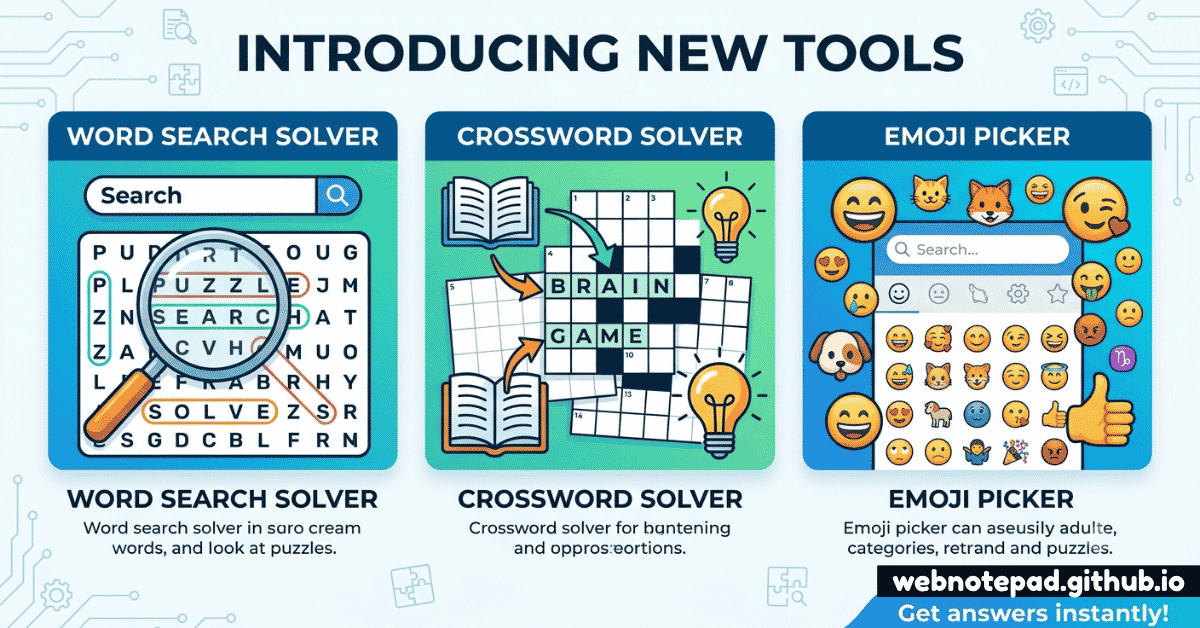
- What's New on WebNotePad
- Word Search Solver: Find Hidden Words Instantly
- Crossword Solver: Crack Any Clue with Pattern Matching
- Emoji Picker: Search, Click, Copy
- Word Search Solver vs. Crossword Solver vs. Word Finder
- How These Tools Fit Into Your Writing Workflow
- 5 Tips for Solving Word Puzzles Faster
- Frequently Asked Questions
What's New on WebNotePad
The WebNotePad toolkit keeps growing, and this update adds three tools built around a simple idea: some tasks deserve their own dedicated, focused app rather than being crammed into a general-purpose tool. Word puzzles need pattern matching. Emoji need fast, searchable access. So that's exactly what we built.
Say hello to the Word Search Solver, the Crossword Solver, and the Emoji Picker — three free, browser-based additions that join the existing suite covering notes, journaling, mind maps, and more. If you haven't seen the full lineup yet, the Ultimate Guide to Digital Note-Taking walks through all of it.
Word puzzles and emoji might look like an odd pairing at first glance, but they share something important: both are about quick, low-friction expression. A word search is a five-minute mental reset. A crossword clue is a small daily ritual for millions of people. An emoji is a single character that can replace an entire sentence of tone. None of these tasks need a heavyweight app — they need something that opens instantly, does one job extremely well, and gets out of the way. That's the design brief behind all three additions.
Here's a full breakdown of each new tool, how to use it, who it's built for, and how it fits alongside everything else already in the WebNotePad suite.
Word Search Solver: Find Hidden Words Instantly
Open Word Search Solver →
Type in the letter grid from any word search puzzle, list the words you're hunting for, and the solver scans in every direction — horizontal, vertical, and diagonal, both forward and backward — to instantly show exactly where each word is hiding.
Who It's For
- Parents and teachers checking a completed puzzle sheet in seconds instead of scanning it by eye
- Puzzle book fans who want to verify a tricky find or finish a puzzle when they're truly stuck
- Puzzle creators who want to double-check that every word they hid is actually findable before publishing
- ESL learners and students using word search puzzles as a vocabulary-building exercise
How to Use It
- Enter the full letter grid exactly as it appears in your puzzle, row by row.
- List the words you're trying to find, one per line.
- Click solve — each word is highlighted directly on the grid, showing its exact position and direction.
Because it checks all eight directions at once, the solver catches the diagonal and backward placements that are the most common reason a human eye misses a word on the page.
Crossword Solver: Crack Any Clue with Pattern Matching
Open Crossword Solver →
Enter a pattern using the letters you already know and blanks for the ones you don't — like C_R_S_ORD — and the solver checks it against a dictionary of more than 63,000 words to return every possible match.
Who It's For
- Daily crossword solvers stuck on one stubborn clue with a few letters already filled in
- Word game players tackling pattern-based puzzles like word ladders or Scrabble tile planning
- Writers and editors hunting for a word that fits a specific length or letter constraint
- Vocabulary builders exploring word families that share a pattern
How to Use It
- Type the pattern of the word you're looking for, using a placeholder character for each unknown letter.
- Optionally narrow results by word length if the crossword grid tells you exactly how many squares are available.
- Review the ranked list of dictionary matches and pick the one that fits the clue's meaning.
Unlike a general search engine, the Crossword Solver is purpose-built for this exact kind of constrained pattern matching, so results come back clean and relevant rather than buried in unrelated search results.
Emoji Picker: Search, Click, Copy
Open Emoji Picker →
A fast, searchable emoji browser. Search by keyword or browse by category, click any emoji to copy it instantly, and paste it wherever you need — a chat message, a social caption, or a note.
Who It's For
- Anyone writing on desktop, where built-in emoji keyboards are often slower or harder to find than on mobile
- Social media managers drafting captions and needing quick access to specific emoji without hunting through categories
- Students and journal-writers adding personality to diary entries or notes
- Anyone who forgets what an emoji is officially called and needs keyword search instead of browsing blindly
How to Use It
- Type a keyword — like "coffee" or "celebrate" — into the search bar.
- Browse the matching results, or scroll by category if you're not sure what you're looking for.
- Click an emoji to copy it, then paste it directly into your document, chat, or note.
It's a small tool, but it removes a surprisingly common bit of friction: switching apps just to find one emoji, then switching back, breaks your writing flow far more than the tiny task deserves.
Word Search Solver vs. Crossword Solver vs. Word Finder
WebNotePad now has three word-related tools that sound similar but solve different problems. Here's how to tell them apart:
- Word Search Solver — you already know the words; you need to find where they're hidden in a letter grid.
- Crossword Solver — you know a pattern of letters and blanks; you need to find which real word fits.
- Word Finder — you have a set of letters (like a Scrabble rack) or want to explore anagrams and related vocabulary; you need to discover new words entirely.
All three are free and complement each other. A crossword player, for instance, might use the Crossword Solver for a pattern-based clue and the Word Finder to explore synonyms or anagram possibilities for a trickier one.
How These Tools Fit Into Your Writing Workflow
None of these three tools exist in isolation — they're designed to slot into the same browser-based workflow as the rest of the toolkit covered in the Ultimate Guide to Digital Note-Taking:
- Building a classroom worksheet? Draft instructions in the Notepad, verify your word search grid with the Word Search Solver, and organize materials in a checklist.
- Stuck on today's crossword during a break? Pull up the Crossword Solver for the one clue that's holding up the whole grid, then get back to focused work with the Pomodoro Timer.
- Journaling tonight? Write your entry in the Diary and drop in a quick emoji from the Emoji Picker to capture the day's mood at a glance.
- Writing social captions? Draft the copy in Focus Writer, check the length with Word Counter, and finish with an emoji or two from the Emoji Picker.
Every new tool on WebNotePad follows the same philosophy as the original 15: small, focused, and free, so you reach for exactly the right tool for the task instead of forcing everything through one bloated app.
5 Tips for Solving Word Puzzles Faster
Scan Diagonals Last, On Purpose
In a word search, most people scan rows and columns first and only check diagonals as an afterthought — which is exactly why puzzle makers hide the trickiest words there. If you're stuck, jump straight to diagonals.
Fill the Shortest Crossword Answers First
Three- and four-letter answers have far fewer possible matches, so they're usually the fastest to solve and give you crossing letters that make the longer answers easier.
Use Known Letters as Anchors
Even one or two confirmed letters in a crossword pattern dramatically narrows a dictionary search — always enter every letter you're sure about before searching.
Think in Themes
Word search puzzles are almost always built around a theme. Once you spot it, you can often guess remaining hidden words before even scanning for them.
Read Crossword Clues Twice
Crossword clues often use wordplay or double meanings. A quick pattern match narrows your options, but rereading the clue after you have candidates helps you pick the right one — not just a word that fits the length.
Free, instant, and ready in your browser right now — no signup required.
Word Search Solver → Crossword Solver → Emoji Picker →Frequently Asked Questions
How does the Word Search Solver work?
You type in the letter grid from your word search puzzle along with the list of words you're hunting for, and the solver scans every direction — horizontal, vertical, and diagonal, forward and backward — to instantly highlight where each word is hidden.
What makes the Crossword Solver different from a regular word finder?
The Crossword Solver is built specifically for pattern matching against a crossword clue: you enter a word pattern using known letters and blanks for the unknowns, and it searches a dictionary of over 63,000 words to return every possible match, ranked by likely fit.
Is the Emoji Picker faster than my keyboard's built-in emoji menu?
For most people, yes — the Emoji Picker lets you search by keyword or category in a browser tab that's already open, then copy the emoji with one click, which is often quicker than navigating a phone or OS emoji keyboard, especially on desktop.
Are these new tools free to use?
Yes. The Word Search Solver, Crossword Solver, and Emoji Picker are all free, run entirely in your browser, and require no signup or account, just like the rest of the WebNotePad toolkit.
Can I use the Crossword Solver for other word games besides crosswords?
Yes. Pattern-matching against a dictionary works for any game where you know some letters and need to find the rest, including word ladders, Scrabble tile planning, and other pattern-based word puzzles.